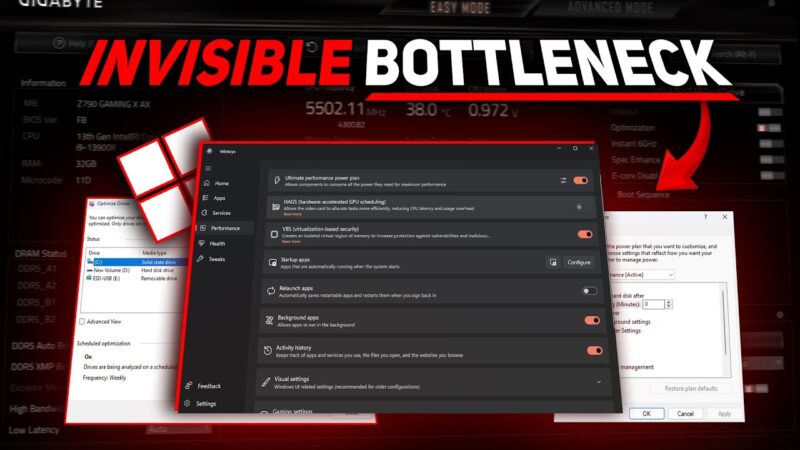
Windows 11 often feels slower than it should — not because of bad hardware, but because of default behavior built into the OS. Background apps run constantly, power management downclocks your CPU at the wrong times, visual effects add UI latency, and update systems interrupt performance when you least expect it.
Over time, these defaults stack up. The result is unstable system behavior, inconsistent frame pacing, delayed input response, and a PC that never quite feels “locked in” — especially noticeable in competitive games.
In this video, you’ll learn how to clean, optimize, and stabilize Windows 11 using WinToys, a free utility distributed directly through the Microsoft Store. No unsafe scripts. No manual registry edits. No system-breaking debloat guides.
We cover:
Why Windows background services create latency and stutter
How default power and startup behavior reduces responsiveness
Which Windows features quietly waste CPU, RAM, and disk activity
How to regain control over updates and UI clutter without harming stability
By the end, your system will feel lighter, more predictable, and more responsive — with fewer interruptions, smoother frame delivery, and a cleaner competitive gaming experience.
This is not about chasing fake FPS gains.
This is about removing friction so your hardware can actually perform.
🛠️ Commands, Paths & Tweaks Used
Tool
Microsoft Store → Search: WinToys
Power & Performance
Ultimate Performance Power Plan
Power Plan GUID: e9a42b02-d5df-448d-aa00-03f14749eb61
Startup App Control (via WinToys Performance tab)
Visual Effects Reduction
System Properties → Performance Options
Windows Search Indexing
Service: Windows Search (WSearch)
Apps & Background Activity
WinToys → Apps tab
Removal of non-essential built-in Windows apps
Startup task cleanup
System Health
Fast Startup
Control Panel → Power Options → Choose what the power buttons do
Hibernation
System setting toggle via WinToys
Drive Optimization
dfrgui
Restore Point Management
System Protection settings
Updates & UI
Windows Update control (security-only / manual)
Widgets disable
Bing search integration removal
Taskbar and File Explorer UI cleanup
If this helped, leave a like so others can find it.
Comment if you want a gaming-specific WinToys preset.
Subscribe for no-nonsense Windows and performance optimization.
| この動画について | |
|---|---|
| URL | https://www.youtube.com/watch?v=yYkxmj0aqg0 |
| 動画ID | yYkxmj0aqg0 |
| 投稿者 | The Software Guy |
| 再生時間 | 08:46 |


コメント